Recently, our friends at Pi Supply launched a Kickstarter for PaPiRus, a Raspberry Pi E-Ink display. Over here at 14Squared, this sounded awesome, so guess what? We will be writing a review of the PaPiRus! Our review will feature a getting started guide and some projects to get you set up with your very own PaPiRus. The display is currently on backorder but they are sold for $46.00 for the smallest of 3 size options, and $53.00 for the largest. We are very excited for the review, check back in a couple days for the review.

Tech News, Tutorials, and Reviews
Wednesday, September 9, 2015

Monday, August 31, 2015
What is 14 Squared?
Hello!
14 Squared is a replacement for Raspberry Pi Bakery. The difference between the two is that while Raspberry Pi Bakery was only about the Raspberry Pi, 14 Squared will be about all things tech. We still plan to write Raspberry Pi tutorials and guides, but we will also write reviews, news, and other projects.
14 Squared is a replacement for Raspberry Pi Bakery. The difference between the two is that while Raspberry Pi Bakery was only about the Raspberry Pi, 14 Squared will be about all things tech. We still plan to write Raspberry Pi tutorials and guides, but we will also write reviews, news, and other projects.
Monday, August 10, 2015
How to Backup Your Pi's SD Card as an Image file
In this tutorial, I will show you how to save your Pi's SD card as a .IMG file. This is useful because it allows you to switch operating systems, easily while saving all your settings and files.
Time: 15 minutes.
Difficulty: Easy.
You Will Need:
Time: 15 minutes.
Difficulty: Easy.
You Will Need:
- A Windows computer.
- An adapter for your Pi's SD card if using a model B+ or 2B.
Steps:
- Remove your Pi's SD card.
- Insert it into your Windows computer.
- Download and install Win32 Disk Imager HERE.
- Remove all USB flash drives and SD cards except the one from your Pi.
- Start Win32 Disk Imager and under "Device", select your Pi's SD card.
- Select a location for your file under "Image File" and click "Read". WARNING: The .IMG file will be very large. They are usually around 5-7 gigabytes.
- This will take a while but once it's finished, you will have a copy of your entire SD card.
Sunday, August 9, 2015
How to Play Videos on your Pi
In this tutorial, we will be using OMXplayer to play videos on the Raspberry Pi.
Time: Less than 5 minutes.
Difficulty: Medium
To do this, we will be using a feature of Raspbian that allows you to play videos from the command line. I use this feature often at trade shows where we need our video to play on a loop.
Steps:
Time: Less than 5 minutes.
Difficulty: Medium
To do this, we will be using a feature of Raspbian that allows you to play videos from the command line. I use this feature often at trade shows where we need our video to play on a loop.
Steps:
- To start, you will need to get a video to play. I have only tested this method with .MP4 videos but it should work fine with most video formats.
- Find the file path to your video and save it for later. This is easy to do, just open up the file manager and navigate to your file, then right click it and select "Copy Path(s)".
- Open up the terminal and type "sudo nano /home/pi/VideoPlayer.sh".
- Insert the following command, "omxplayer -o hdmi (Paste the path to your video here)".
- Exit the Nano editor and try running the script. It should play your video.
- This method is not intended for playing all your videos, it's best for just playing one.
Thursday, August 6, 2015
A Brief Review of Pidora
Earlier today I decided I would try some operating systems other than Raspbian. The first one I tried is called Pidora. Here is my experience.
The install took about 10 minutes, and configuring everything took about 5 minutes. All the configuration is done through Pidora's wonderful GUI on the first boot. Once you have everything set up, you see this desktop.


The first thing I installed was Firefox, because the default browser is Midori, which, to put it lightly, is horrible.
Pros:
The install took about 10 minutes, and configuring everything took about 5 minutes. All the configuration is done through Pidora's wonderful GUI on the first boot. Once you have everything set up, you see this desktop.

From the Applications Menu up top, you can launch all of the applications that come preinstalled with Pidora. To install more, you can use Pidora's "Yum Extender".

The first thing I installed was Firefox, because the default browser is Midori, which, to put it lightly, is horrible.
Pros:
- Good UI
- Nice and easy to use
- Firefox
- Yum Extender
- Everything seems very slow on my Pi. I hope to try it on a Pi 2. If it is any faster, I might use this instead of Raspbian.
Tuesday, July 7, 2015
Running C# Programs on Your Pi
Have you ever wanted to create something awesome with your Pi, but not wanted to use Python? If so, you are in luck. We will be using Mono and GTK to run C# programs on your Pi.
Difficulty: Advanced
Time: 30 Minutes
You Will Need:

Difficulty: Advanced
Time: 30 Minutes
You Will Need:
- A way to access your Pi.
- A way to transfer files to your Pi.
- A Windows Computer
Steps:
- Log in to your Pi and open the Terminal.
- You will need to install GTK and Mono. Use the following commands.
- sudo apt-get install mono-complete.
- sudo apt-get install gtk-sharp2.
- You are done with your Pi for right now.
- Now we will install MonoDevelop's Xamarin Studio. It is a C# editor like Visual studio, but it can use GTK, which is what you will need to run GUI programs on the Pi.
- To install it, go to their website. You will also need the .NET framework and GTK, which are also available on their website. Website Link Here.
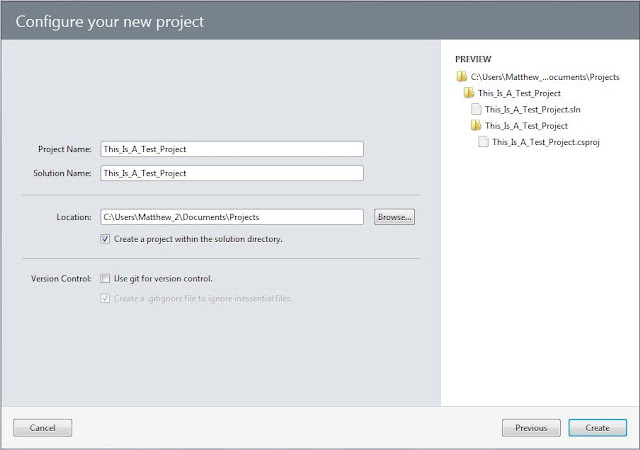
- Once that is all set up. Run Xamarin Studio and start a new GTK project.


- Now that that's done, you can write a C# program as usual.
- Transfer the .exe file to your Pi.
- To run it, right click it and click Mono Runtime as the option to open it.
- You should see your program.
Monday, June 29, 2015
How To Backup Your Pi
If you use your Pi often, like me, you know that it can be a pain to lose everything by reinstalling Raspbian whenever something breaks. To avoid this you can backup your home folder to save a copy of all of your work.
Time: 5 minutes.
Difficulty: Easy.
You will need:
Time: 5 minutes.
Difficulty: Easy.
You will need:
- A way to access your Pi.
- A USB flash drive.
Steps:
- Open the command line and type
sudo su. You will need to be a superuser to do this. The user Pi is by default. - Type
cd /home/ - Type
tar czf pi_home.tar.gzpi - Type
exitto exit the superuser shell. - Now move the file pi_home.tar.gz to your flash drive and you are finished. The file is located in your /home folder.
Subscribe to:
Posts (Atom)